> ## Documentation Index
> Fetch the complete documentation index at: https://docs.seyval.dev/llms.txt
> Use this file to discover all available pages before exploring further.

# ダッシュボード

> Seyval Dashboardの使い方

## 目次

* [リポジトリの設定](#リポジトリの設定)
* [分析の実行](#分析の実行)
* [コードの実行](#コードの実行)

***

## リポジトリの設定

### リポジトリを追加する

GitHubリポジトリのURLを入力し、**+ Add Repository**をクリックして登録します。

<img src="https://mintcdn.com/aixs/KIcyjiZ7QpqCcdVw/images/repo-register.png?fit=max&auto=format&n=KIcyjiZ7QpqCcdVw&q=85&s=c715b1fcd13e77d9ac516ce796f6b2ad" alt="リポジトリを追加する" width="715" height="96" data-path="images/repo-register.png" />

### 登録後

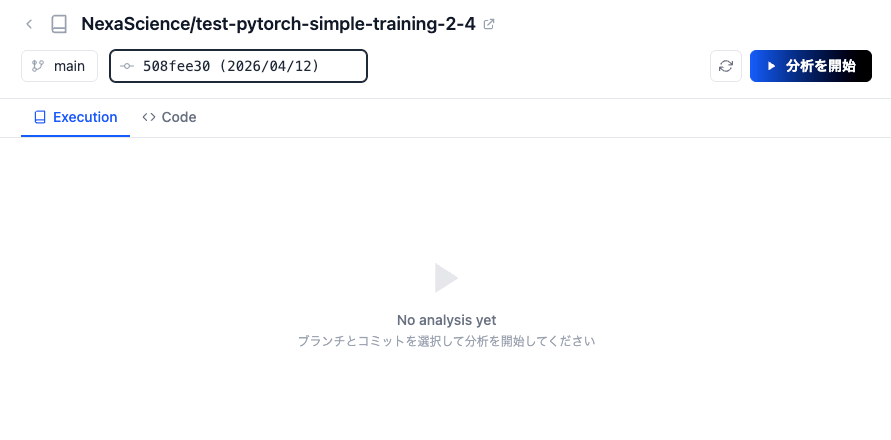
登録後、ブランチとコミットを選択して分析を開始できる画面に移動します。
<img src="https://mintcdn.com/aixs/KIcyjiZ7QpqCcdVw/images/repo-after-register.png?fit=max&auto=format&n=KIcyjiZ7QpqCcdVw&q=85&s=de7b8ceaad6695ce231c470e1c313a24" alt="登録後" width="891" height="440" data-path="images/repo-after-register.png" />

***

## 分析の実行

### 分析を開始する

ブランチとコミットを選択し、**Start Analysis**をクリックしてリポジトリの分析を実行します。

<img src="https://mintcdn.com/aixs/KIcyjiZ7QpqCcdVw/images/analyze-button.png?fit=max&auto=format&n=KIcyjiZ7QpqCcdVw&q=85&s=373b98f8ebbf855f43589dec2fdba262" alt="分析を開始する" width="191" height="59" data-path="images/analyze-button.png" />

分析が完了すると、以下の2つの項目が生成されます。

### サマリー

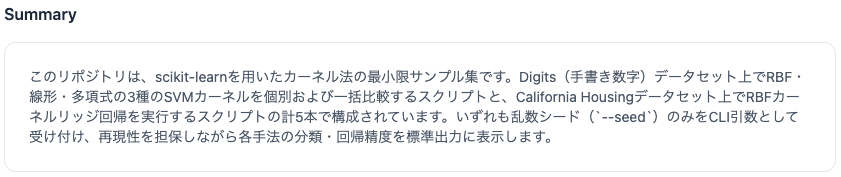
リポジトリの内容に基づいて、コードのサマリーと説明が自動的に生成されます。
<img src="https://mintcdn.com/aixs/KIcyjiZ7QpqCcdVw/images/analysis-summary.png?fit=max&auto=format&n=KIcyjiZ7QpqCcdVw&q=85&s=7ed61a98aa2e0d9cc563d0fa27dae288" alt="サマリー" width="841" height="177" data-path="images/analysis-summary.png" />

### 実行一覧

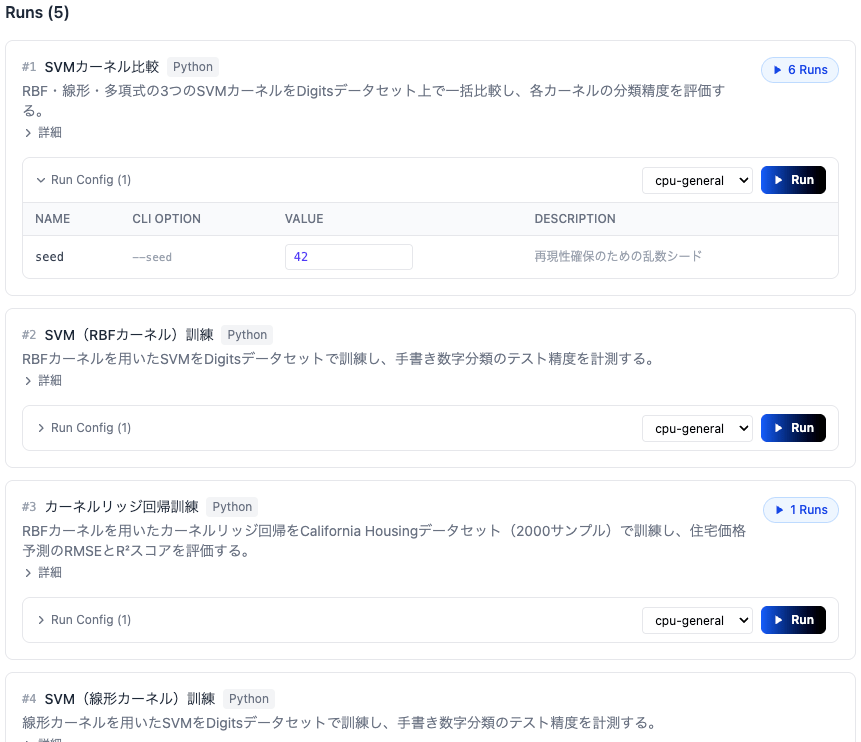
リポジトリ内で見つかった実行可能なエントリーポイントのリストが生成されます。各エントリーポイントには説明、CLIオプション、コンピュート環境の設定が含まれており、**Run**ボタンから直接実行できます。
<img src="https://mintcdn.com/aixs/KIcyjiZ7QpqCcdVw/images/analysis-entrypoints.png?fit=max&auto=format&n=KIcyjiZ7QpqCcdVw&q=85&s=69f9ec65acbeb535d1e540781a294ef3" alt="実行一覧" width="861" height="742" data-path="images/analysis-entrypoints.png" />

***

## コードの実行

### エントリーポイントカード

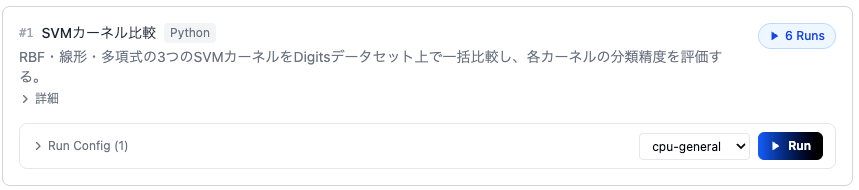
実行一覧から実行したいエントリーポイントカードを選択します。各カードにはエントリーポイントの説明と実行設定が表示されます。
<img src="https://mintcdn.com/aixs/KIcyjiZ7QpqCcdVw/images/entrypoint-card.png?fit=max&auto=format&n=KIcyjiZ7QpqCcdVw&q=85&s=f3327e4ce3e80faa4845b3ce08de6439" alt="エントリーポイントカード" width="859" height="190" data-path="images/entrypoint-card.png" />

### 実行設定の変更

**Run Config**を展開して、CLIオプションの値を変更し、コンピュート環境（Compute Type）を選択します。

<img src="https://mintcdn.com/aixs/KIcyjiZ7QpqCcdVw/images/run-config.png?fit=max&auto=format&n=KIcyjiZ7QpqCcdVw&q=85&s=80a3339b3d4961834dfa9cbdb6bcfc83" alt="実行設定の変更" width="806" height="133" data-path="images/run-config.png" />

### 実行

設定が完了したら、**Run**ボタンをクリックして実行を開始します。

<img src="https://mintcdn.com/aixs/KIcyjiZ7QpqCcdVw/images/run-button.png?fit=max&auto=format&n=KIcyjiZ7QpqCcdVw&q=85&s=c0327998b3ee53a3b41a107501cbc201" alt="実行" width="73" height="40" data-path="images/run-button.png" />

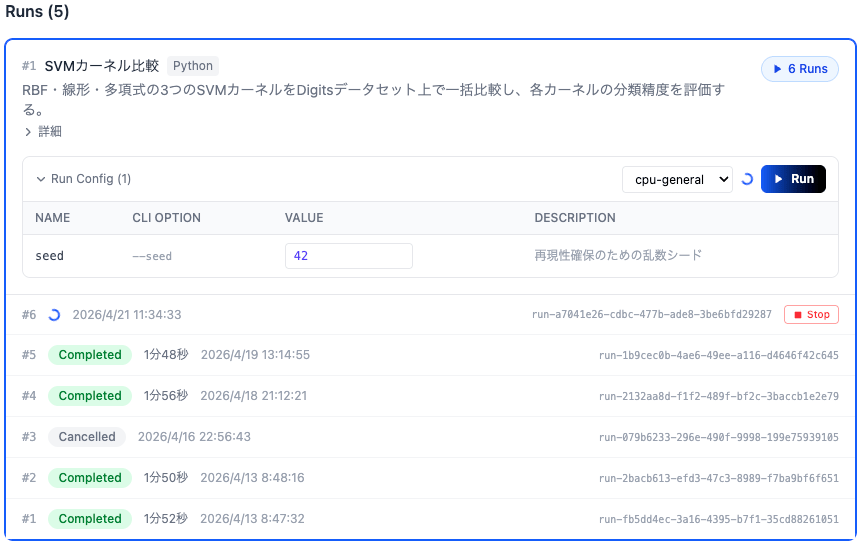
### 実行の監視

実行が開始されると、カード下部の実行一覧に新しいRunが追加されます。実行中はステータスがリアルタイムで更新されます。
<img src="https://mintcdn.com/aixs/KIcyjiZ7QpqCcdVw/images/entrypoint-run.png?fit=max&auto=format&n=KIcyjiZ7QpqCcdVw&q=85&s=38eebb15e40fd09272f02e78bab24a59" alt="実行の監視" width="862" height="545" data-path="images/entrypoint-run.png" />

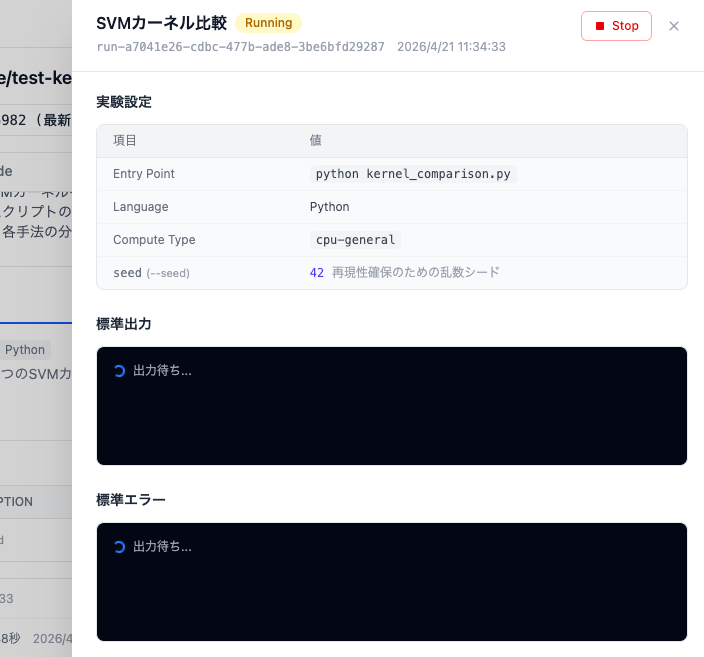
### 実行の詳細

実行中のRunをクリックすると、実験設定、標準出力、標準エラーをリアルタイムで確認できます。
<img src="https://mintcdn.com/aixs/KIcyjiZ7QpqCcdVw/images/experiment-status.png?fit=max&auto=format&n=KIcyjiZ7QpqCcdVw&q=85&s=edd1fe40261f254c0bac75bc6bfa004c" alt="実行の詳細" width="704" height="657" data-path="images/experiment-status.png" />

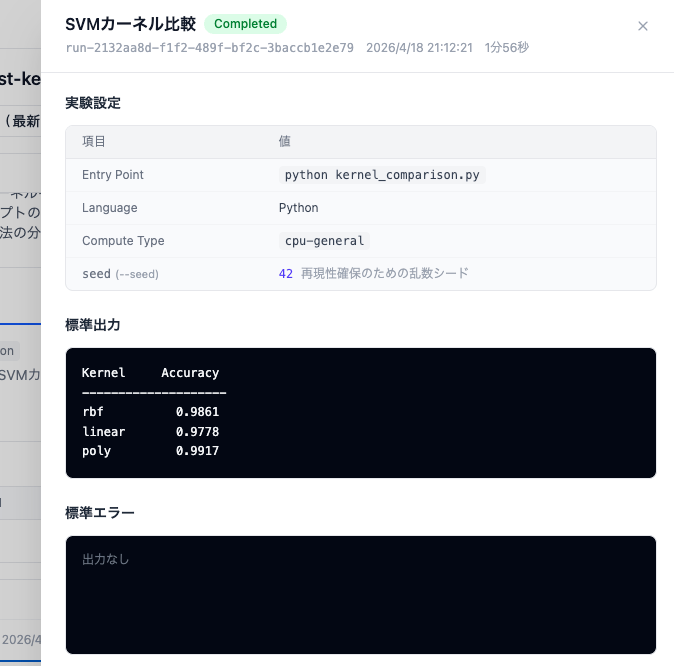
### 結果の確認

実行が完了すると、ステータスが**Completed**に変わり、標準出力に結果が表示されます。
<img src="https://mintcdn.com/aixs/KIcyjiZ7QpqCcdVw/images/experiment-result.png?fit=max&auto=format&n=KIcyjiZ7QpqCcdVw&q=85&s=84977a867e8755bca5d5798d93ca90a5" alt="結果の確認" width="674" height="666" data-path="images/experiment-result.png" />
